 Himanshi Sharma
TL;DR
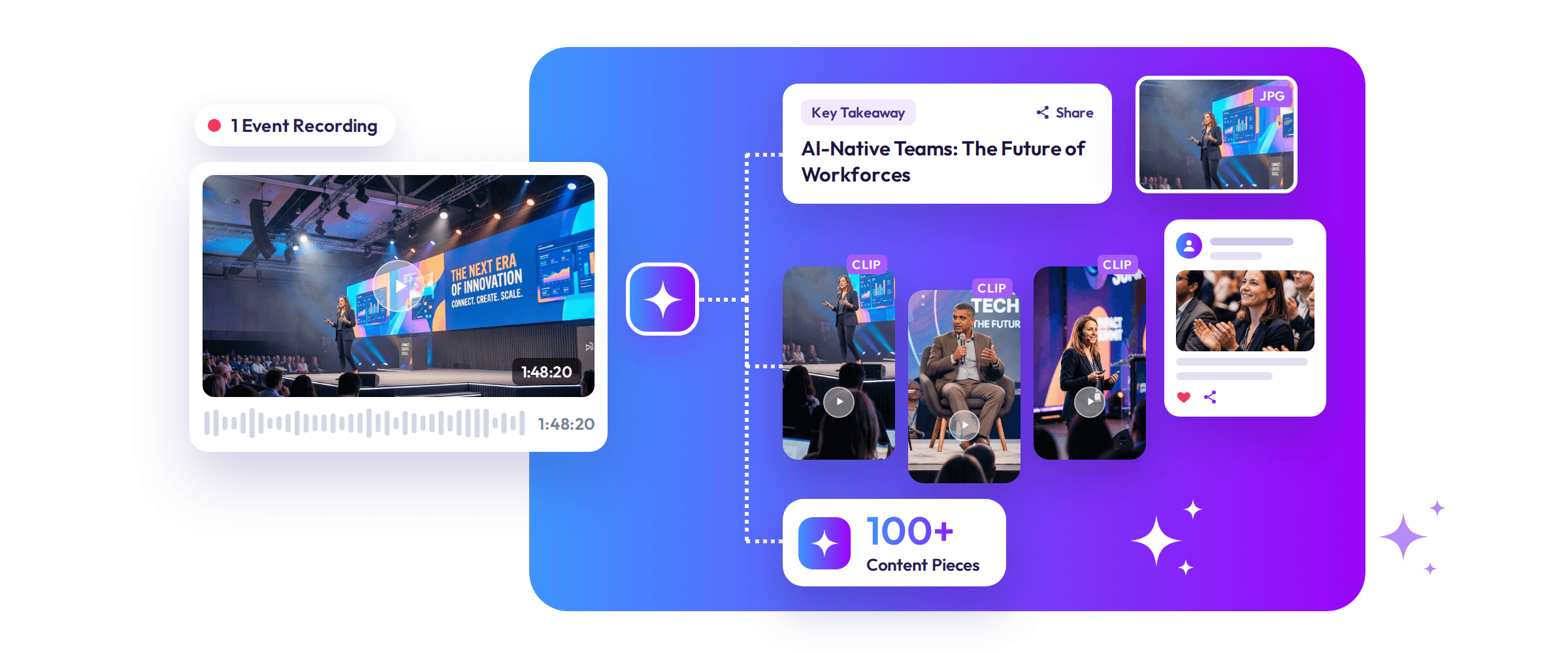
- One event recording can generate 100+ content assets, including short videos, social media posts, blogs, newsletters, and educational resources.
- AI simplifies event video clipping by transcribing recordings, identifying important moments, and extracting shareable highlights.
- Different content formats help teams reach audiences across LinkedIn, Instagram, YouTube, websites, and email.
- Review AI-generated clips for accuracy, context, captions, and speaker permissions before publishing.
- The right AI workflow makes it easier to repurpose event recordings and extend the value of every event long after it ends.
Introduction
Organizing an event takes weeks or even months of planning. From keynote speeches and panel discussions to product announcements and audience interactions, every session creates valuable content. Yet, once the event ends, much of this information remains locked in lengthy video recordings.
Watching hours of footage, finding useful moments, editing clips, and preparing social media posts manually can take days. AI offers a way to make better use of this existing material. Instead of starting from scratch, teams can turn event recording into clips, summaries, social posts, blogs, and several other formats.
The opportunity is already clear. According to TwentyThree’s State of Webinars 2026 report, 68% of surveyed organisations repurpose webinar content into other formats, including video clips, articles, and social media posts.
With the right workflow, one recording can potentially generate more than 100 content assets. AI-powered event video clipping helps identify valuable moments and makes it easier to reuse them across different channels without repeatedly editing the original footage.
Why One Event Recording Can Generate 100+ Content Pieces
A 60-minute conference session is not just one long video. It can contain several independent ideas worth sharing.
For example, a keynote speaker might discuss industry challenges, share practical recommendations, answer audience questions, and announce an upcoming development. Each of these moments can become a separate content opportunity.
The challenge is finding and presenting them in different formats. Traditionally, editors need to watch the complete recording, note timestamps, extract relevant sections, and prepare individual assets. When an event has multiple sessions, the work becomes even more demanding.
Consider a 90-minute business conference featuring three speakers and a panel discussion.
| Original event content | Possible content assets |
| Keynote speech | Short clips, quote graphics, key takeaways |
| Panel discussion | Speaker highlights, discussion posts, blog insights |
| Audience Q&A | Question-and-answer videos, FAQs, educational posts |
| Product announcement | Promotional clips, launch posts, email updates |
| Event recap | Summary video, newsletter, website article |
The important thing is to understand that 100+ is a potential output, not a guaranteed result. The final number depends on recording quality, the number of useful discussions, and how many formats and channels you want to target.
How to Turn One Event Recording into 100+ Content Pieces Using AI
AI tools can reduce the repetitive work involved in finding, extracting, and preparing content. Here’s how to organize the complete process.
1. Upload and Process the Recording
Start by uploading the complete event recording. It could be a conference keynote, webinar, town hall, product launch, or panel discussion.
Organize recordings by session or speaker, particularly when working with multi-day events. Clear audio and good-quality footage also help produce more useful results.
2. Transcribe the Spoken Content
AI speech recognition converts spoken conversations into written text. This transcript makes it easier to understand what was discussed without watching the entire recording again.
It also helps locate specific statements, questions, technical explanations, and topics that may be worth turning into separate content pieces.
3. Identify Important Moments
AI analyses the conversation to suggest meaningful sections, including:
- Strong industry insights.
- Interesting speaker statements.
- Important announcements.
- Audience reactions.
- Practical recommendations.
- Memorable questions and answers.
An event highlights generator can help surface these moments, giving editors a starting point for selecting the most useful segments.
4. Extract Short Video Clips
Once valuable moments are identified, AI can extract relevant sections into shorter videos.
This is where event video clipping becomes particularly useful. Instead of manually searching through the recording timeline, editors can review suggested segments and select those that communicate a complete idea.
For a more detailed explanation, explore a guide on how to take clips from event videos the fast way using AI.
5. Generate Supporting Written Content
The same transcript and selected moments can support different written formats, such as:
- Social media captions.
- Speaker quotes.
- Blog outlines.
- Email summaries.
- Frequently asked questions.
- Newsletter highlights.
For example, a speaker’s explanation of an industry challenge can become a LinkedIn post, a short article, and a newsletter insight. Always review AI-generated text to ensure it accurately represents the original discussion.
6. Edit, Adapt, and Export
Prepare the selected assets for their intended platforms. This may involve adjusting aspect ratios, checking subtitles, selecting suitable thumbnails, and exporting videos in the required formats.
Keep the original message intact while making small changes to suit different audiences. This makes the final event recording into clips process more organized and useful.
Content Ideas and Where to Publish Them
Creating multiple assets becomes easier when you think beyond short videos. A single recording can support social media, educational, marketing, website, and internal communication requirements.
Here is an illustrative content plan:
| Content category | Potential assets | Suitable channels |
| Short-form videos | 30 | Instagram, YouTube Shorts, LinkedIn |
| Social media content | 20 | LinkedIn, Instagram, X |
| Educational content | 15 | Website, LinkedIn, YouTube |
| Website content | 15 | Blogs, resource pages, knowledge hubs |
| Marketing assets | 10 | Email campaigns, landing pages, social media |
| Internal communication | 10 | Company intranet, internal newsletters, training libraries |
| Total | 100 | Multiple channels |
Here are some ways to develop these assets:
- Short-form videos: Create speaker highlights, keynote clips, panel snippets, expert tips, audience reactions, and product demonstrations.
- Social media content: Extract memorable quotes, prepare discussion posts, design carousels, create polls, and share important takeaways.
- Educational content: Turn expert explanations into how-to videos, FAQs, explainer posts, and practical learning resources.
- Website content: Develop event recaps, session summaries, topic-based articles, and speaker interviews.
- Marketing assets: Prepare promotional videos, email teasers, sponsor showcases, and event highlight reels.
- Internal communication: Share team updates, training clips, meeting takeaways, and employee learning resources.
The same insight can also be adapted for different platforms. For instance, a panel discussion about AI in business could become a LinkedIn discussion post, an Instagram Reel, a YouTube Short, and a detailed website article.
If you want to explore more ways to reuse event footage, read about repurposing event content into short videos, summaries, and shareable moments.
You can repurpose event recordings over several weeks instead of publishing everything immediately after the event. This gives audiences more opportunities to discover the original discussion.
What to Look for in an AI Event Video Clipping Workflow
Not every AI tool produces useful content simply because it can generate clips. Before choosing a solution, pay attention to these practical factors:
- Highlight accuracy: Does it identify meaningful moments instead of random video segments?
- Transcript quality: Are speaker statements and technical terms captured correctly?
- Editing flexibility: Can you adjust clip duration and remove unwanted sections?
- Caption generation: Are subtitles readable and accurate?
- Format options: Can you prepare videos for different social platforms?
- Export quality: Do downloaded videos retain good audio and visual clarity?
- Privacy: Does the platform explain how recordings are stored and who owns the content?
A reliable event highlights generator should reduce repetitive work without removing editorial control. Test the workflow using an actual recording before making it part of your regular content process.
Common Mistakes to Avoid When Repurposing Event Recordings
Producing more content does not automatically mean producing better content. Keep these common mistakes in mind:
| Avoid | Do instead |
| Publishing AI-selected clips without checking them | Review context and accuracy first |
| Cutting sentences midway | Keep complete thoughts and explanations |
| Using identical videos everywhere | Adapt length, format, and messaging |
| Ignoring speaker permissions | Confirm recording and publishing rights |
| Sharing clips without subtitles | Check captions and audio quality |
| Publishing repetitive highlights | Give every asset a distinct takeaway |
Don’t chase the 100-piece target at the cost of quality. Ten genuinely useful clips can create more value than dozens of repetitive videos.
How Snipin AI Helps Simplify Event Video Repurposing
Managing multiple recordings and extracting useful moments can become difficult, particularly for conferences with several sessions.
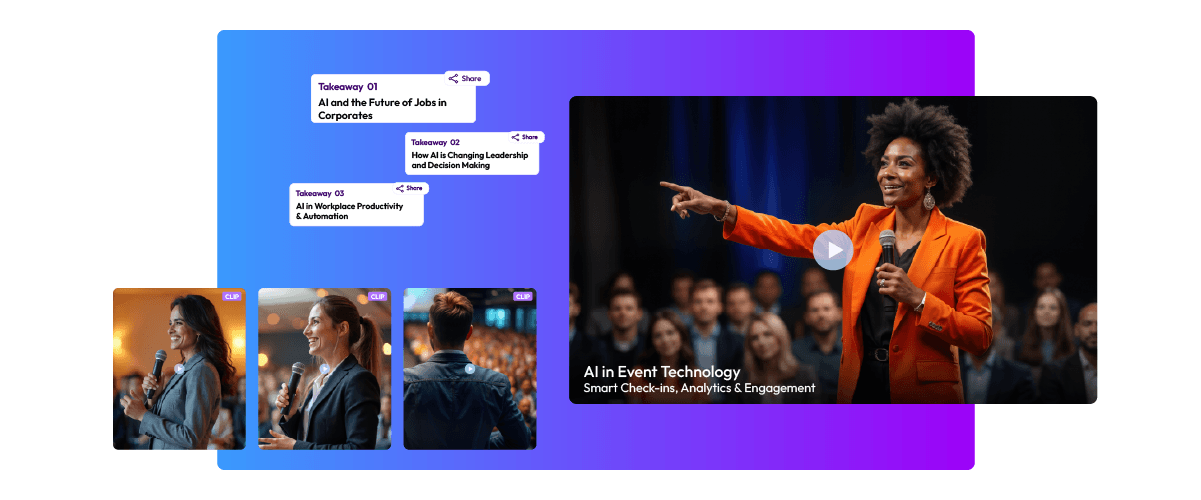
Snipin AI helps event teams turn long recordings into short video clips, summaries, key takeaways, and shareable content.
Its platform offers AI-generated highlights, content summaries, shareable clips, a branded event microsite, and built-in content analytics. Teams can also review and approve generated content before publishing it.
For teams looking to repurpose event recordings without manually searching through every session, this workflow can simplify content creation and distribution.
Explore Snipin AI and see how your event recordings can become shareable content.
From One Event Recording to Multiple Content Opportunities!
An event shouldn’t stop creating value when the final session ends. Its recordings contain expert knowledge, useful conversations, and insights that can support your content strategy long after the event.
With AI-assisted event video clipping, teams can identify important moments, create short videos, generate supporting written content, and distribute assets across multiple channels.
Start with one recording, identify the strongest discussions, and build a practical content plan around them. Whether you want to turn an event recording into clips, create educational posts, or develop a longer article, give every asset a clear purpose.
The right event highlights generator can reduce repetitive editing work, but human review remains essential for context, accuracy, and quality.
FAQs
1. Can one event recording really generate 100+ content pieces?
Yes. A recording can support videos, social media posts, quote graphics, blogs, newsletters, and educational resources. The exact number depends on the recording’s length and the quality of the discussion.
2. How does AI identify important moments in an event recording?
AI analyses spoken content, topics, speaker emphasis, and available audio or visual signals to suggest potentially valuable highlights.
3. Do AI-generated event clips need manual editing?
Yes. Reviewing clips for context, accuracy, subtitles, and audio quality is important before publishing.
4. How long does it take to create clips from an event recording?
It depends on recording length, processing requirements, and the tool used. AI can speed up highlight selection and clipping, but final review and publishing still require time.
5. Can event content be reused across multiple social media platforms?
Yes. You can adapt the same insight into different video lengths, formats, captions, and written posts for each platform.

 Arun • February 24, 2026 • 16 min read