
 Himanshi Sharma
TL;DR
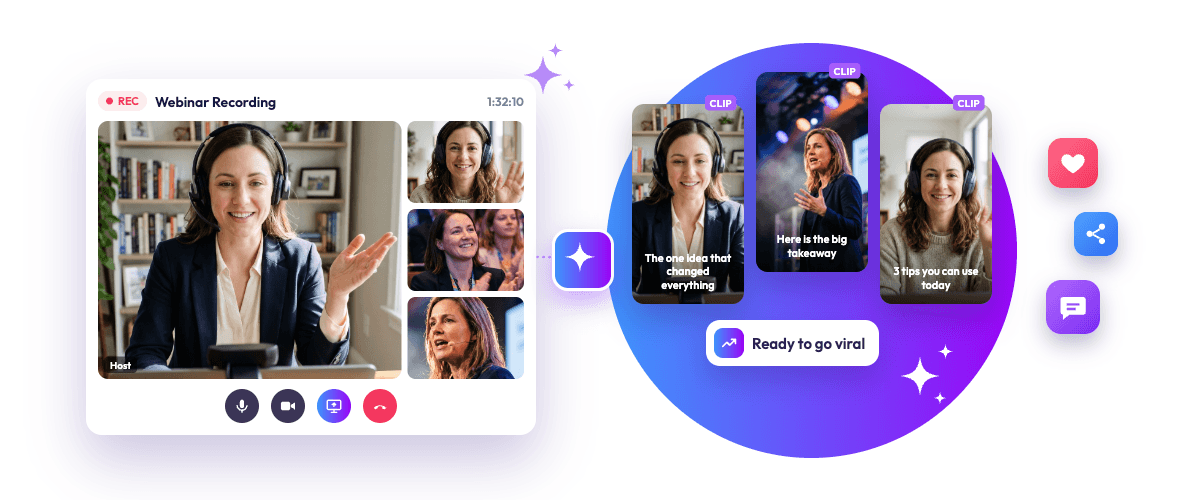
You can reuse webinar and virtual event recordings for social media, email campaigns, and event promotions. Focus on useful moments such as expert answers, practical tips, customer stories, and memorable quotes. AI tools can help find highlights, suggest clips, and generate captions, saving editing time. Before publishing, review each clip for accuracy, context, captions, and sound quality. Adjust the format for each platform, track its performance, and choose a tool that lets you control the final edits.
Introduction
A webinar may last an hour, but viewers may only need one useful answer, a practical tip, or a memorable quote from the speaker. Short videos make these moments easier to find and share.
In India, 97% of surveyed consumers said they watched short-form videos at least once a day, according to a 2025 Meta-commissioned study.
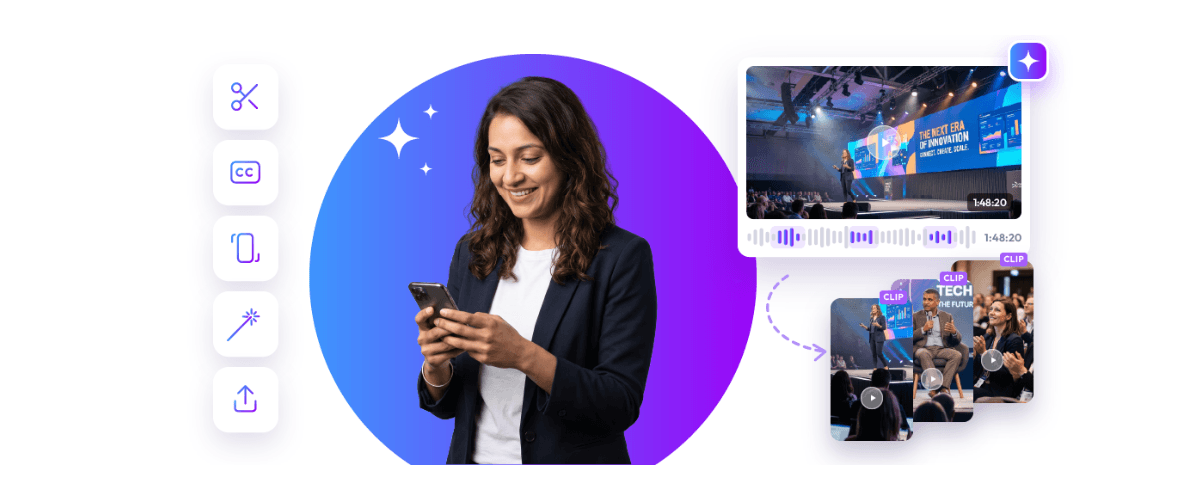
This gives businesses another reason to reuse their event recordings. Instead of letting a recording sit unused, teams can turn it into webinar video clips for social media, email campaigns, and event follow-ups. AI can help find interesting moments and prepare draft edits, while a person checks that each clip is accurate and worth watching.
Why Repurpose Webinar and Virtual Event Recordings?
A full recording is useful for people who want to watch the complete discussion. However, it takes time to find the sections that interest them. Short clips make individual ideas easier to access and share.
Creating webinar video clips can help businesses:
- Reach people who missed the event: Share key moments with people who could not attend.
- Promote the full recording: Give viewers a preview and a reason to watch the complete session.
- Share expert knowledge: Turn a speaker’s explanation or practical tip into a useful post.
- Support sales conversations: Share answers to common customer questions or short product explanations.
- Stay visible after the event: Keep useful discussions circulating after the live session ends.
This approach is known as webinar content repurposing. It means using the same recording in different formats instead of creating every piece of content from scratch. Start by asking what your audience wants to learn, which questions they often ask, and which ideas are worth revisiting. That makes webinar content repurposing more useful than simply trying to produce as many clips as possible.
How AI Helps Turn Long Recordings Into Short Clips
Finding strong moments manually can take hours. Someone has to watch the recording, note timestamps, cut the footage, add captions, and prepare versions for different channels.
An AI tool can help with the first part of this work. Depending on its features, it may:
- Review the recording: Process the video and identify sections that may be useful.
- Find possible highlights: Detect key talking points, speaker emphasis, questions, or audience reactions.
- Suggest shorter edits: Turn selected sections into draft clips.
- Create captions: Generate text from speech so viewers can follow along without sound.
- Prepare clips for review: Let users adjust, approve, remove, or regenerate suggested clips.
AI video clipping for webinars can reduce the time spent searching through a long recording. However, AI may miss context, misread a speaker’s point, or make mistakes in captions. Treat AI video clipping for webinars as a starting point, not a replacement for editorial review. A reliable process includes a person checking the final video.
Step-by-Step: How to Create Short Clips From a Webinar
Follow these steps to turn a long recording into useful short videos.
1. Start With a Good Recording
Use the original recording and check the audio, video quality, and speaker visibility. Note speaker names and roles for accurate captions.
2. Upload the Recording and Find Highlights
Upload the video to an AI tool and let it identify key points, strong explanations, and audience interactions.
This speeds up turning a webinar recording into short clips, but review each suggestion to ensure it captures a complete thought.
3. Pick One Main Idea for Each Clip
Choose one useful point or question for each video. Before editing, check:
- Is the message clear?
- Is enough context included?
- Is the information accurate?
- Will the audience find it useful?
- Does the clip end naturally?
4. Edit the Video for Its Destination
Remove long pauses, add captions, and adjust the framing. Keep the speaker’s meaning intact.
When creating webinar-to-social media clips, start with the most useful moment rather than a long introduction. You can turn a webinar into short clips around practical tips, common questions, or expert opinions.
5. Review the Final Clip
Check the captions, names, sound, and video framing. Confirm permissions and remove confidential information before publishing.
6. Publish and Track the Response
Share webinar video clips on relevant platforms with a short caption and, where possible, a link to the full recording.
Track views, watch time, comments, shares, and clicks to see which clips perform best.
Types of Clips You Can Create From One Recording
A webinar can provide several types of content. The best clips are not necessarily the shortest moments in the recording. They are the ones that offer a clear takeaway, answer a relevant question, or make an important discussion easier to understand.
Here are some useful formats to look for:
| Clip type | What to include | Where it can be used |
| Quick tips | One practical suggestion or useful takeaway | Social posts and newsletters |
| Expert answers | A clear response to a common question | FAQs and follow-up emails |
| Speaker quotes | A memorable statement with enough context | LinkedIn posts and event promotion |
| Customer stories | A problem, experience, or result shared by a customer | Case studies and sales material |
| Product explanations | A short explanation of a feature or process | Product pages and campaigns |
| Event moments | An interesting exchange, announcement, or audience question | Event recaps and future event promotion |
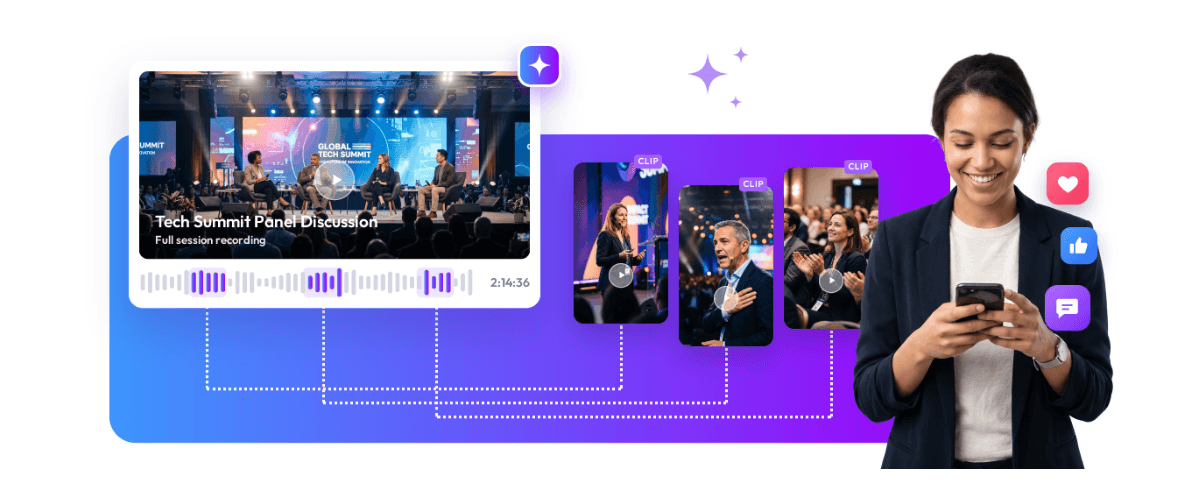
For example, a panel discussion might include a useful expert answer, a customer example, and a memorable quote. Each moment can become one of several virtual event video clips. You can also use a lively exchange or an audience question if it adds value and makes sense outside the full discussion.
Choose virtual event video clips that reflect the event’s main themes rather than cutting footage at random timestamps. Keep enough of the original conversation to make each clip understandable. These selected moments can also serve as webinar recording highlights for people who want to catch up on the most useful parts of a session.
This is also virtual event content repurposing: selecting parts of an event recording for different content needs. One clip might answer a customer question, another might share an expert insight, and another might promote a future event. Good virtual event content repurposing gives the same discussion more opportunities to reach the right audience.
Which Video Format Works Best on Each Platform?
The best format depends on where people will watch the clip. Vertical video is a practical choice for mobile-first short-video feeds, while square or horizontal formats may work better in other placements.
| Platform | Format to consider | Editing tip |
| Instagram Reels | Vertical (9:16) | Start with a strong statement and use readable captions. |
| YouTube Shorts | Vertical or square | Keep the clip focused and check YouTube’s current Shorts rules. |
| TikTok | Vertical (9:16) | Get to the main point quickly and avoid a long branded introduction. |
| Vertical or square; horizontal can suit presentation-style content | Explain why the point matters to a professional audience. | |
| Vertical or square | Use a clear opening and captions for viewers watching without sound. |
Adjust webinar to social media clips to suit the platform rather than uploading the same version everywhere. Check that captions are easy to read and do not cover important parts of the video.
YouTube allows eligible square or vertical videos of up to three minutes to be classified as Shorts. Check the official YouTube Shorts requirements before publishing, as platform rules can change.
Manual Editing vs. AI Video Clipping
AI can make the first edit faster, but it does not remove the need for a human editor. The right approach depends on the number of recordings, the time available, and how much control the final videos need.
| Area | Manual editing | AI-assisted editing |
| Finding moments | Requires watching and marking the recording | Can suggest moments for review |
| Editing time | Often takes longer | Can speed up repetitive steps |
| Creative control | Direct control over every cut | Depends on the tool’s editing options |
| Accuracy and context | Editor checks the original discussion | Human review is still needed. |
| Best suited for | A small number of carefully edited videos | Teams handling frequent or lengthy recordings |
An AI tool may prepare draft AI webinar clips, but a person should compare each selection with the original discussion. The best AI webinar clips keep the speaker’s meaning intact and make sense to someone who has not watched the full session.
How to Choose the Right AI Video Clipping Tool
Before choosing a tool, consider what your team needs to do after each event. An AI webinar video editor should make it easier to find, review, and prepare useful moments without taking away control over the final result.
Look for these features:
- Recording support: Can it handle the length and file type of your webinars or event recordings?
- Highlight detection: Does it identify useful talking points and speaker moments?
- Editing control: Can you trim, remove, or regenerate clips?
- Caption quality: Can you review and correct captions before publishing?
- Export options: Can you prepare videos for the channels you use?
- Privacy and access: Are storage, sharing, and team permissions suitable for your organisation?
Compare tools based on these needs. A suitable AI webinar video editor should fit your team’s actual workflow, not just promise to create a large number of clips. Also check whether the tool lets you review its suggestions before exporting.
Conclusion
A webinar does not have to stop being useful when the live session ends. Choose moments that answer real questions, edit them into short videos, and share them on relevant platforms. This gives useful ideas another chance to reach people who may never watch the full recording.
For teams that regularly host webinars and virtual events, finding these moments manually can take considerable time. Snipin.ai’s webinar and virtual event solution lets users upload recordings and identify key talking points, speaker emphasis, audience engagement, and reaction peaks. It can generate highlights, summaries, takeaways, and shareable clips. Users can review, approve, remove, or regenerate the suggested outputs before sharing them.
This gives teams a starting point for webinar video clips without searching through the entire recording manually. To explore more ways to reuse event footage, read how to repurpose event content into short videos.
Frequently Asked Questions
1. Can AI create short clips from a full webinar recording?
Yes. Some tools can find possible highlights and prepare draft clips. Review each clip for context and accuracy before publishing.
2. How many clips can I make from one webinar?
There is no fixed number. It depends on the length of the session and how many moments offer a clear, useful idea.
3. Can webinar clips be shared on different social platforms?
Yes. Adjust the video size, captions, and opening for each platform, and check its latest upload requirements.
4. Should I still share the full webinar recording?
Yes. Short clips help people discover key moments, while the full recording gives interested viewers the complete discussion.


 Raghav • February 6, 2026 • 8 min read